
This is a follow-up to my post Buy, Own, Stream - The “Rip, Mix, Burn” of 2026 from earlier this month. There, I documented how I found the perfect setup for my music library and while that remains true, I also noted one part missing in the experience.
While Music Assistant has all the features I need on the backend side, like connectivity to my Navidrome (and Audiobookshelf) libraries, support for my Sonos multi-room speaker setup and rich metadata integration, the frontend is a serviceable Web UI, but that’s it. What’s missing is a really nice, native controller app for my music library and multi-room speaker setup, that utilizes the Music Assistant API and features a UX that puts my music front-and-center, while feeling familiar and native to the device’s ecosystem.
So, that’s what I built: My first Swift App ever, and I really like it. I call the app Klanghaus, from the German words “Klang” (= Sound) and “Haus” (= House). It features rich artist and album metadata including biographies, reviews, genres, styles, moods, popular tracks, credits, cross-album references, big artworks and media galleries.
That allows me to browse my music, while I listen to it, learn new things about the people behind the music and can cross-reference albums in whole new ways.
Browsing your Music
The app opens to a home page, giving you an overview of your current playback state across your home, then allows you to continue listening to Audiobooks or Podcasts you already started, followed by the usual Recently Played, New Albums, Top Artists, etc.
The sidebar gives you access to your playlists, as well as a global search and a way to browse your library by Artists, Albums, Playlists or Credits.
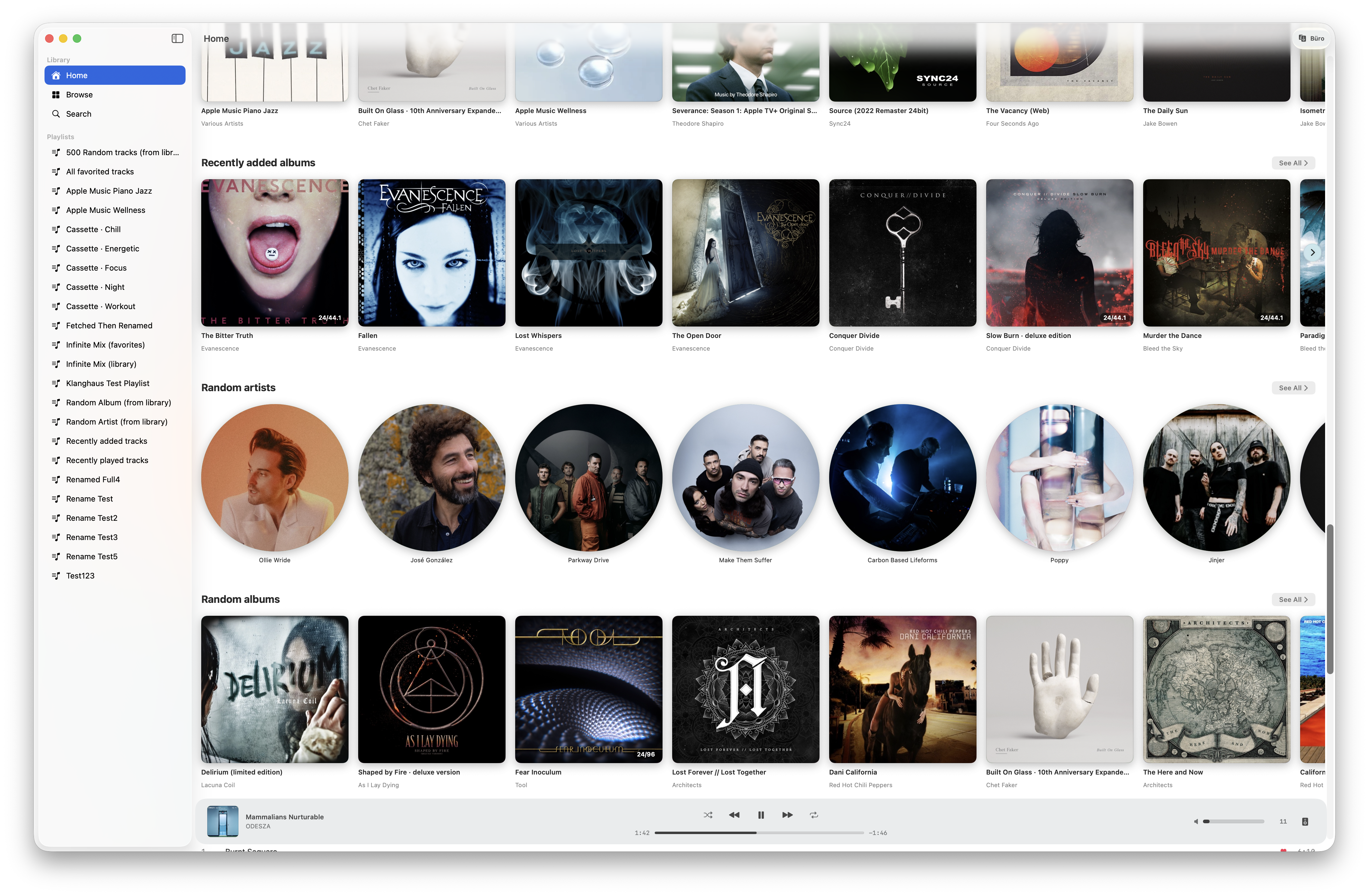
The artist page, tries to fetch rich artworks and editorial texts from the metadata providers you set up in Music Assistant, like Wikipedia, MusicBrainz, fanart.tv, etc. None of this is provided by or limited to Klanghaus itself - again, it’s just a client for your Music Assistant library, but I tried to make it as nice as possible to browse. The app also has an action in settings to set off a full metadata sync, to basically fetch everything that’s available for your whole library - but also runs these calls lazily once you open pages. If there’s no fanart or description available, it shows a fallback state with more basic information.
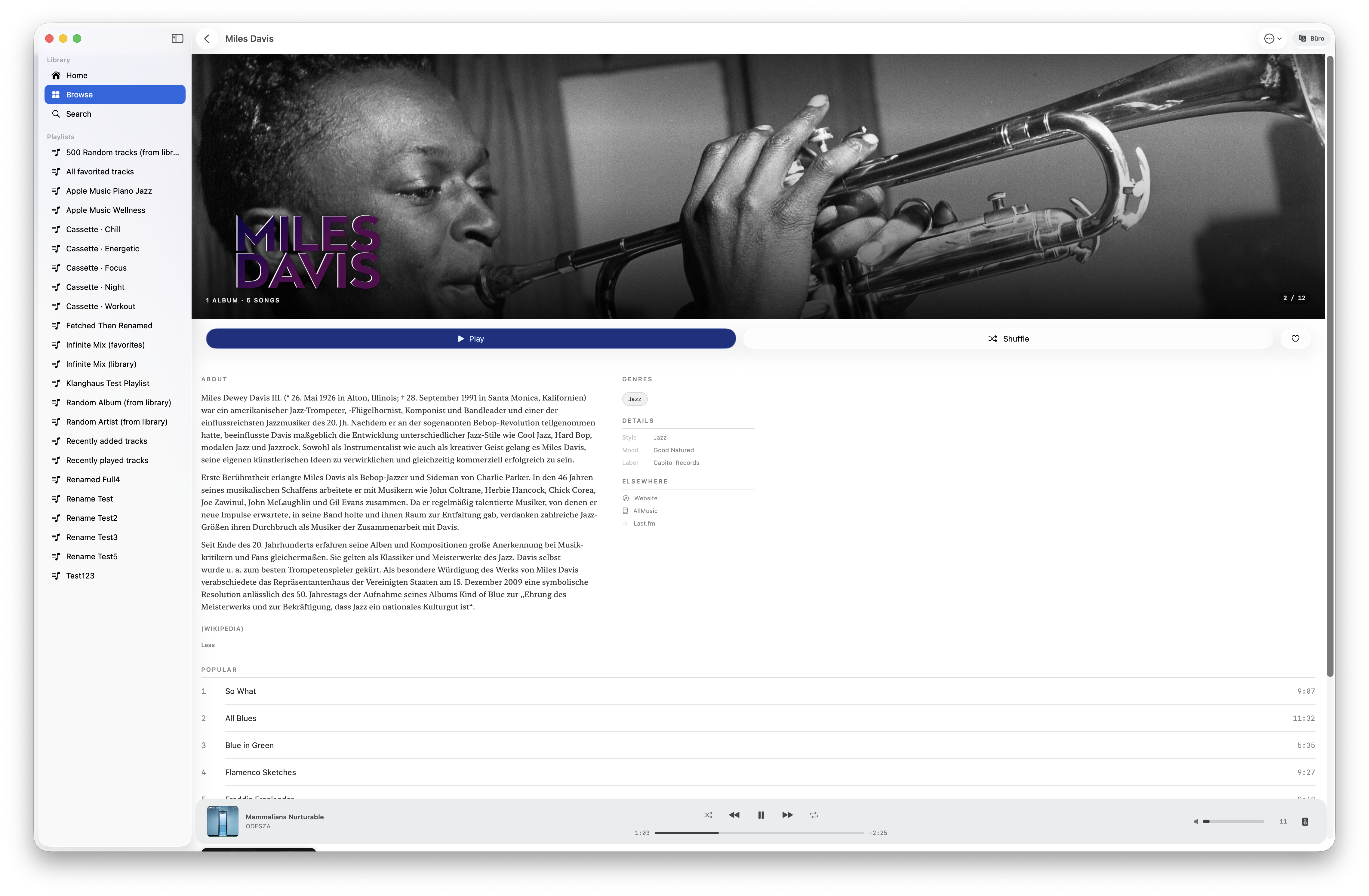
The album pages do a similar thing, showing a cover that opens a gallery of additional artwork that you can browse and zoom. It’s followed by basic transport controls, a media quality badge, as well as genre tags, that you can click to browse the genre and find other artists and albums using the same style. It also shows album descriptions and some additional information, like the record label or when the album was added to your library.
The track list itself gives you a clean overview, including disk and title numbers, favorite state and length, with the options to play, enqueue, add to favorite and playlists. Below shows potential reviews, “also seen on”, and artist credits, if available.
The Player
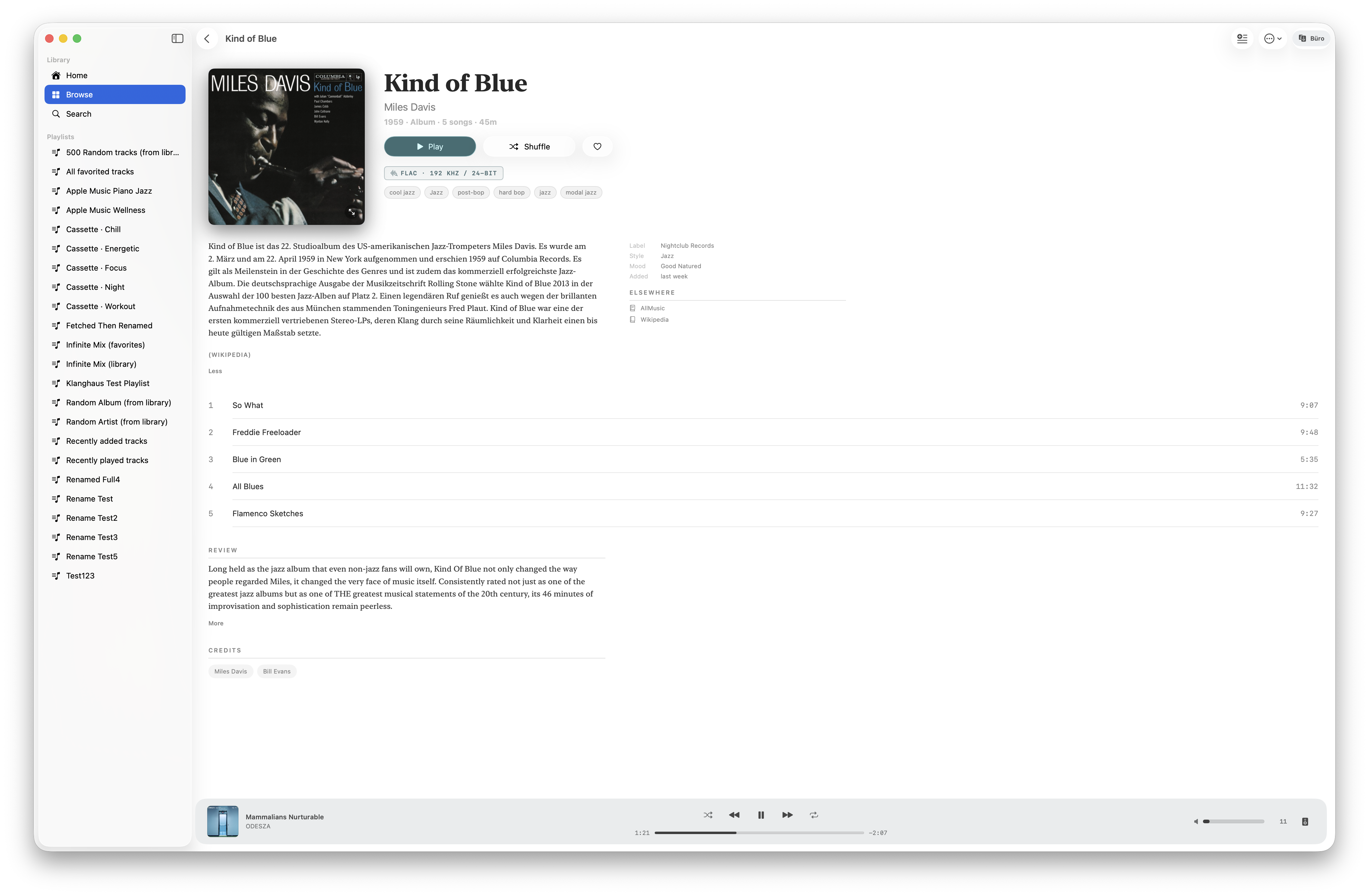
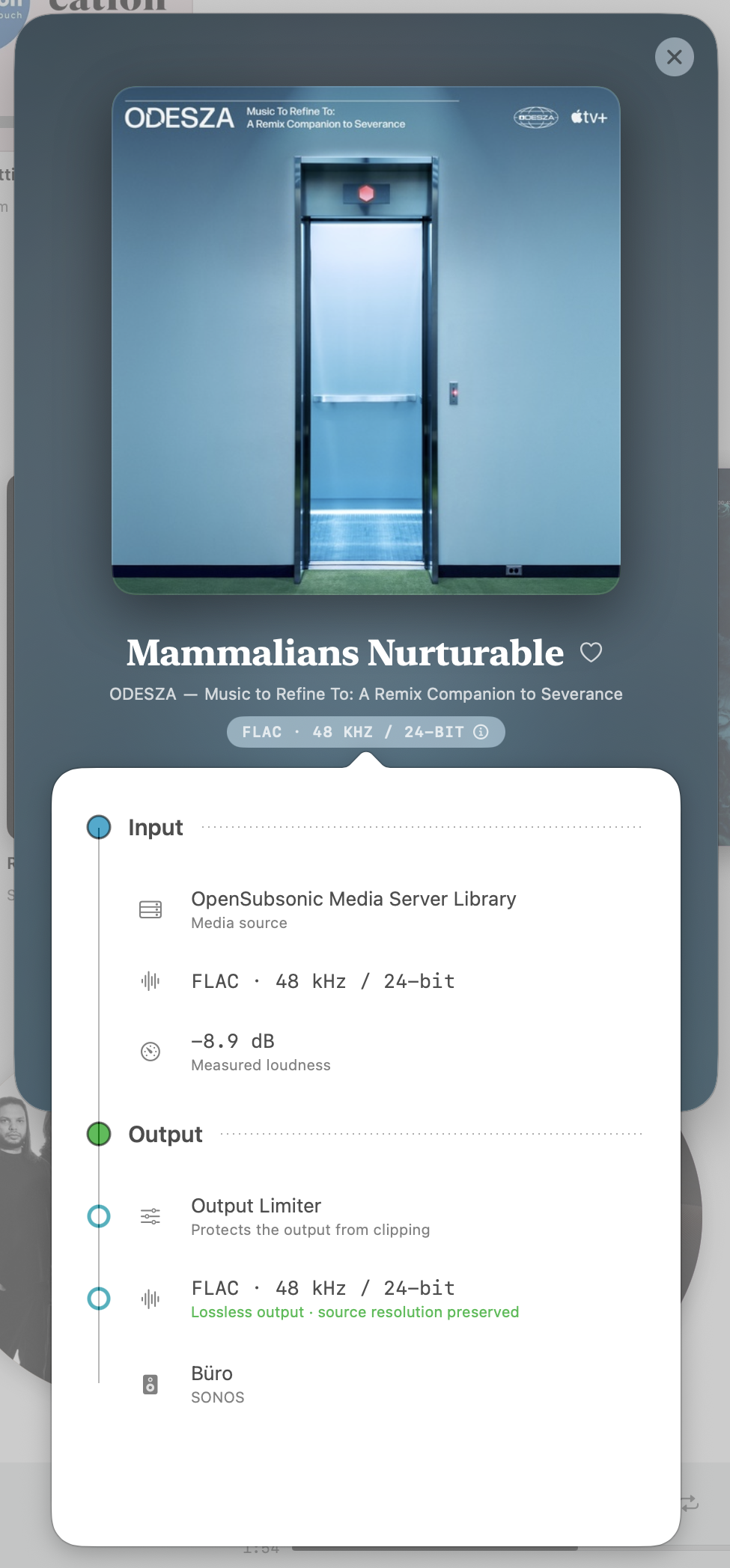
Playing media on the selected speaker(s) shows an immersive playback sheet that’s always accessible from the very bottom of the viewport, both on iOS and macOS. The player is tinted with the album artwork, just like all the other controls in the app for selected media. Tapping the quality badge again, shows the full playback and DSP pipeline, just like in Music Assistant, giving you a perfect overview on how many of your source bits actually make it to the speaker.
What I’m most proud of, however, is the volume controls. I accidentally always pressed somewhere on the volume bar, often in the rightmost area, maxing my speaker’s volume and almost blowing my ears out. So instead of reacting to single taps or clicks, you can hold and move your finger wherever you want on the volume controls and it will gradually adjust either up or down - on iOS, even with satisfying clicks per increment, just like on some old stereos. On iOS, you can also use the volume up/down buttons when playback is running, to adjust in small enough increments that it feels under control, even on speakers with big bandwidth. That volume slider has to be the single thing I spent the most time on to get it right.

Speaker Control
This is also one of the three places that you can get access to your current set of speakers playing back. I tried to optimize the experience that Music Assistant offers by adding the mental model of the AirPlay speaker selection in iOS, to always let you know what plays where - and to give you confidence about what will happen with your selection: The currently selected speaker has a checkbox. Adding other speakers using that checkbox forms a temporary group and starts playback on these as well. If you want to switch to another speaker without adding it to the group, you can click the “Transfer” button on the right, to transfer the playback queue there altogether. Pressing anywhere else on each speaker will select the speaker as the current playback target, preserving the grouping as it currently exists to allow you to control other speaker groups without destroying them.
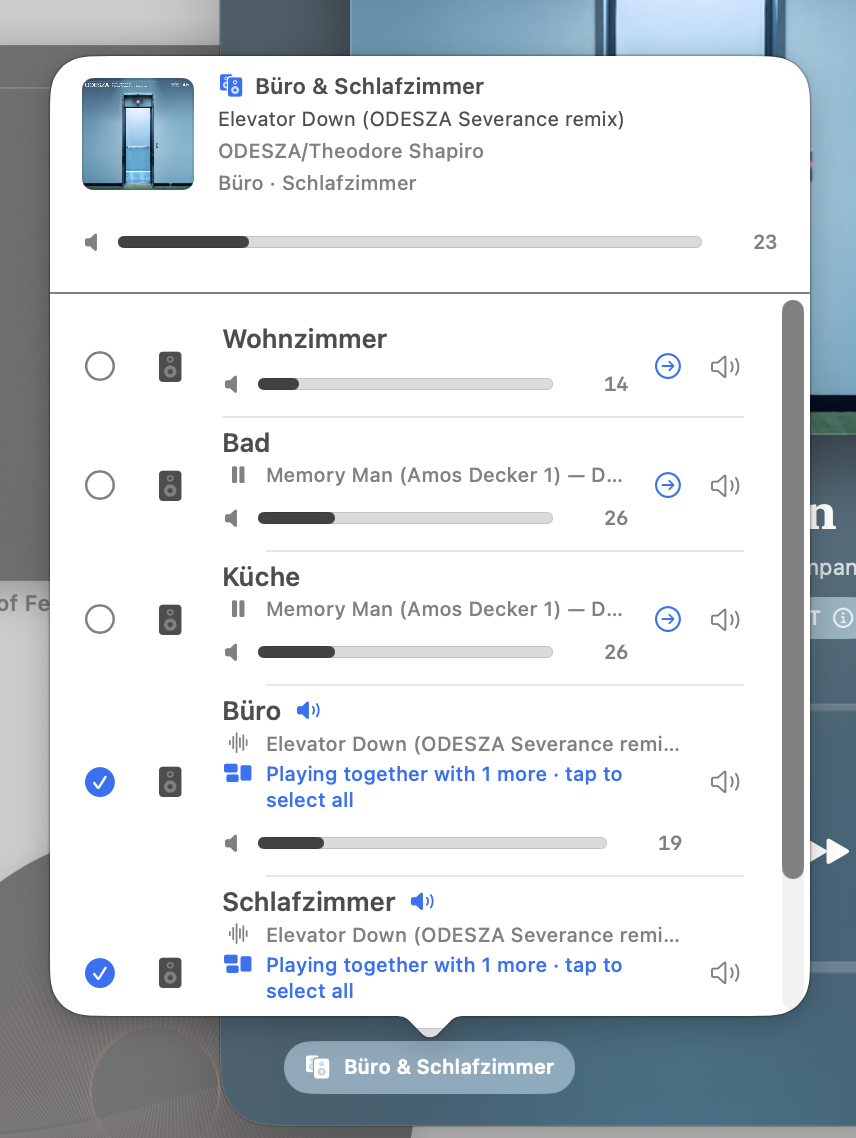
In the settings, you have two options for multi-speaker volume: “Preserve balance” or “Match exactly”. The first one is what you are used to: increasing the group volume adds or subtracts the increments from each speaker individually. The latter just forces each speaker to have the same volume altogether (which I prefer).
Testing Klanghaus
Since it works nicely for me, I would love to get your feedback on the app. This is why I put it up on TestFlight yesterday, where you can find builds for iOS, iPadOS and macOS to browse.
If the above description sounds like you could like it, I would really appreciate you trying it out and providing feedback, either on Mastodon, or by email.
Here’s the link: https://testflight.apple.com/join/dkB42KcT